Resources
Introduction
Welcome to the Resources page — a simple, friendly place where you’ll find the tools, apps, and devices that make using technology easier, safer, and less stressful.
Everything on this page has been chosen because it’s:
-
easy to use
-
beginner‑friendly
-
trusted and reliable
-
suitable for seniors and complete beginners
-
explained in clear, simple language
There’s no jargon, no pressure, and no complicated choices — just straightforward recommendations that help you feel more confident with everyday technology.
Whether you’re looking for apps and tools, devices, accessories, or services, everything is organised into easy sections so you can scroll at your own pace.
Take your time, explore, and choose what feels right for you. This page is here to help you feel supported every step of the way.
A simple guide to the best apps, tools, devices, and services — all chosen to make everyday technology easier.
Table of Contents
Apps & Tools
Devices
Accessories
Services
1. Recommended Apps & Tools
⭐ Password Managers
1Password — Best overall for seniors
1Password is very easy to use, with a clean layout and strong security. It works on phones, tablets, and computers, and it can fill in passwords for you automatically.
Why we recommend it:
-
Simple, uncluttered design
-
Excellent security
-
Works on all devices
NordPass — Easiest to use
NordPass has big buttons, clear menus, and a very simple layout. It’s ideal for anyone who wants a straightforward, no‑confusion password manager.
Why we recommend it:
-
Very easy to navigate
-
Strong encryption
-
Works across all devices
Dashlane — Best extra features
Dashlane includes helpful extras like a built‑in VPN and automatic password health checks. It’s simple to use and offers strong protection.
Why we recommend it:
-
Easy dashboard
-
Built‑in VPN
-
Strong autofill
Bitwarden — Best free option
Bitwarden offers a powerful free version that works on all devices. It’s simple, secure, and great for anyone on a budget.
Why we recommend it:
-
Free version available
-
Simple interface
-
Works everywhere
Proton Pass — Best for privacy
Proton Pass focuses on privacy and security. It has a clean design and is ideal for people who want strong protection without complexity.
Why we recommend it:
-
Privacy‑first design
-
Strong encryption
-
Simple layout
⭐ Cloud Storage
Keep your photos and files safely backed up online so you never lose important memories.
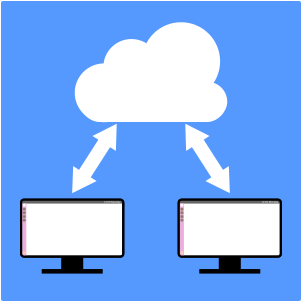
Google Photos Best for storing photos
Google Photos is simple, automatic, and perfect for backing up photos from your phone or tablet. It keeps everything organised and easy to find.
Why we recommend it:
- Automatic photo backup
- Easy to share with family
- Works on all devices
iCloud Drive — Best for iPhone and iPad users
iCloud keeps your photos, files, and notes safely stored across all your Apple devices. It works quietly in the background.
Why we recommend it:
- Built into every iPhone and iPad
- Very simple to use
- Automatic backups
Microsoft OneDrive — Best for Windows users
OneDrive is ideal if you use a Windows laptop or PC. It keeps your files synced and backed up automatically.
Why we recommend it:
-
Works perfectly with Windows
-
Easy file organisation
-
Great for documents and photos
Dropbox — Easiest for sharing files
Dropbox is simple, reliable, and great for sharing photos or documents with family members.
Why we recommend it:
-
Very easy to share files
-
Clean, simple layout
-
Works on all devices
Amazon Photos — Best for Amazon Prime members
If you already have Amazon Prime, Amazon Photos gives you unlimited photo storage at no extra cost.
Why we recommend it:
-
Unlimited photo storage for Prime members
-
Simple backup
-
Great for large photo collections
⭐ VPNs
A VPN helps keep your online activity private and protects you when using public Wi‑Fi.
NordVPN — Best overall for seniors
NordVPN is fast, secure, and very easy to use. The app has clear buttons and simple menus, making it ideal for beginners.
Why we recommend it:
-
One‑tap protection
-
Very fast speeds
-
Works on all devices
-
Excellent security
ExpressVPN — Easiest to set up
ExpressVPN is known for its simple setup and very clear interface. It’s great for anyone who wants privacy without technical steps.
Why we recommend it:
-
Very simple app
-
Strong privacy protection
-
Works on phones, tablets, and computers
Surfshark — Best value for money
Surfshark offers strong protection at a lower price. It also lets you use the VPN on unlimited devices, which is great for families.
Why we recommend it:
-
Unlimited devices
-
Very affordable
-
Easy to use
CyberGhost — Best for beginners
CyberGhost has a very friendly design with large buttons and simple explanations. It’s ideal for seniors who want a no‑stress experience.
Why we recommend it:
-
Beginner‑friendly layout
-
One‑click connection
-
Good privacy features
Proton VPN — Best for privacy
Proton VPN is made by the same team behind Proton Mail. It focuses heavily on privacy and has a clean, simple interface.
Why we recommend it:
-
Strong privacy focus
-
Simple design
-
Free version available
⭐ Antivirus Tools
Protect your computer from viruses, scams, and harmful websites with simple, automatic security.
Norton 360 — Best overall protection
Norton 360 offers strong, all‑round protection with very simple apps. It includes antivirus, scam protection, a firewall, and even a built‑in VPN.
Why we recommend it:
-
Excellent virus protection
-
Easy to install and use
-
Includes VPN and password checker
-
Works on Windows, Mac, phones, and tablets
Bitdefender — Best for beginners
Bitdefender runs quietly in the background and doesn’t slow your computer down. It’s ideal for seniors who want protection without pop‑ups or confusion.
Why we recommend it:
-
Very simple to use
-
Strong automatic protection
-
Light on system resources
McAfee Total Protection — Best for families
McAfee offers strong protection and includes identity monitoring, which is helpful for avoiding scams. It’s great if you want to protect multiple devices.
Why we recommend it:
-
Protects several devices
-
Includes identity protection
-
Easy dashboard
Kaspersky Standard — Best value
Kaspersky offers excellent protection at a lower price. The interface is clean and simple, making it a good choice for budget‑friendly security.
Why we recommend it:
-
Very strong virus detection
-
Affordable
-
Simple layout
Microsoft Defender — Best free option (Windows only)
If you use Windows 10 or 11, Microsoft Defender is built in and provides solid protection for free.
Why we recommend it:
-
Free and automatic
-
Built into Windows
-
Good basic protection
⭐ Note‑Taking Apps
Keep your notes, reminders, shopping lists, and ideas safely stored and easy to find.
Google Keep — Easiest for beginners
Google Keep is colourful, simple, and perfect for quick notes. It works on all devices and syncs automatically.
Why we recommend it:
-
Big, clear notes
-
Very easy to use
-
Works on phones, tablets, and computers
Apple Notes — Best for iPhone and iPad users
Apple Notes is built into every Apple device and is extremely simple. Great for lists, reminders, and storing documents.
Why we recommend it:
-
Already installed on Apple devices
-
Very clean layout
-
Syncs automatically with iCloud
Microsoft OneNote — Best for organising lots of notes
OneNote is ideal if you like keeping things in folders or sections. It’s great for people who want more structure.
Why we recommend it:
-
Organises notes into notebooks
-
Works on all devices
-
Great for long‑term storage
Evernote — Best for saving documents and web pages
Evernote is powerful and great for storing recipes, documents, screenshots, and longer notes.
Why we recommend it:
-
Good for large collections
-
Easy to save photos and documents
-
Works across all devices
Simplenote — Best minimalist option
Simplenote is perfect for people who want a clean, distraction‑free note app with no extras.
Why we recommend it:
-
Very simple design
-
Fast and lightweight
-
Works on all devices
⭐ Website Builders for Seniors
Easy, beginner‑friendly tools to help you create your own website — without needing any technical skills.
Building a website today is much simpler than it used to be. Modern website builders use drag‑and‑drop layouts, ready‑made templates, and clear instructions, making them ideal for seniors who want to create something personal, meaningful, or practical online.
Below are the best and easiest website builders for beginners, along with what each one is good for.
Webador — Simplest Layout (Perfect for First‑Time Users)
Webador is extremely clean and easy to use. It’s ideal for seniors who want a website builder with no clutter, no confusion, and no complicated menus.
Why we recommend it
-
Very simple layout
-
Easy to learn
-
Good for small personal websites
-
Perfect for first‑time website creators
Hostinger Website Builder — Cheapest and Very Easy to Use
Hostinger’s website builder is simple, fast, and one of the most affordable options available. It’s ideal for seniors who want a clean, easy editor without paying too much.
Why we recommend it
-
Very low cost
-
Simple drag‑and‑drop editor
-
Fast hosting included
-
Great for small personal websites
-
Beginner‑friendly layout
2. Recommended Devices
Simple, reliable devices that are easy to use and ideal for beginners.
⭐ Senior‑Friendly Smartphones
Phones that are easy to see, easy to hear, and simple to use.
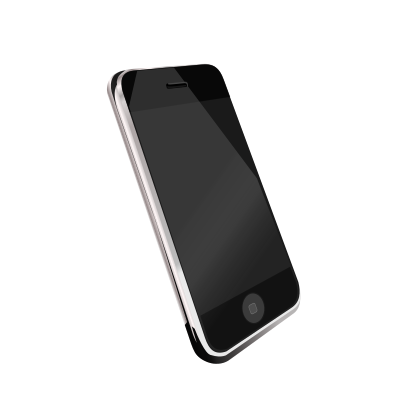
Doro 8100 — Best for complete beginners
The Doro 8100 has large icons, loud sound, and an assistance button. Perfect for seniors who want something simple and stress‑free.
Why we recommend it:
-
Big, clear screen
-
Loud and clear audio
-
Emergency assistance button
Samsung Galaxy A15 — Best everyday smartphone
A modern smartphone that’s still simple to use. Great camera, long battery life, and Samsung’s “Easy Mode” makes everything larger.
Why we recommend it:
-
Affordable
-
Easy Mode for bigger icons
-
Great battery life
iPhone SE (2024) — Best for Apple users
Small, fast, and very easy to use. Works perfectly with iPads and Macs.
Why we recommend it:
-
Simple interface
-
Very reliable
-
Works with all Apple services
⭐ Tablets
Perfect for reading, browsing, video calls, and watching TV.

iPad (10th Gen) — Best overall tablet
Simple, fast, and perfect for beginners. Great for video calls, photos, and apps.
Why we recommend it:
-
Very easy to use
-
Excellent screen
-
Works with Apple Notes and iCloud
Samsung Galaxy Tab A9 — Best budget tablet
A great Android tablet that’s affordable and easy to navigate.
Why we recommend it:
-
Good value
-
Simple interface
-
Great for browsing and YouTube
⭐ Laptops
Simple, reliable laptops for everyday use.
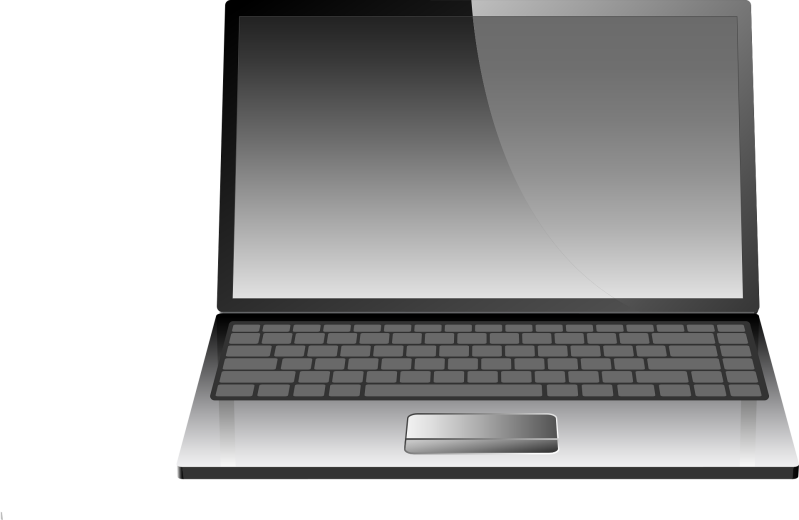
Chromebook (Lenovo IdeaPad Flex) — Easiest for beginners
A Chromebook is perfect for email, browsing, and video calls. Very simple and secure.
Why we recommend it:
- Easy to use
- Fast startup
- Great for everyday tasks
Windows Laptop (HP Pavilion 15) — Best for Windows users
A reliable laptop for people who prefer Windows and want something familiar.
Why we recommend it:
-
Good performance
-
Clear screen
-
Works with OneDrive and Microsoft apps
⭐ Smart Speakers
Great for reminders, music, and hands‑free help.
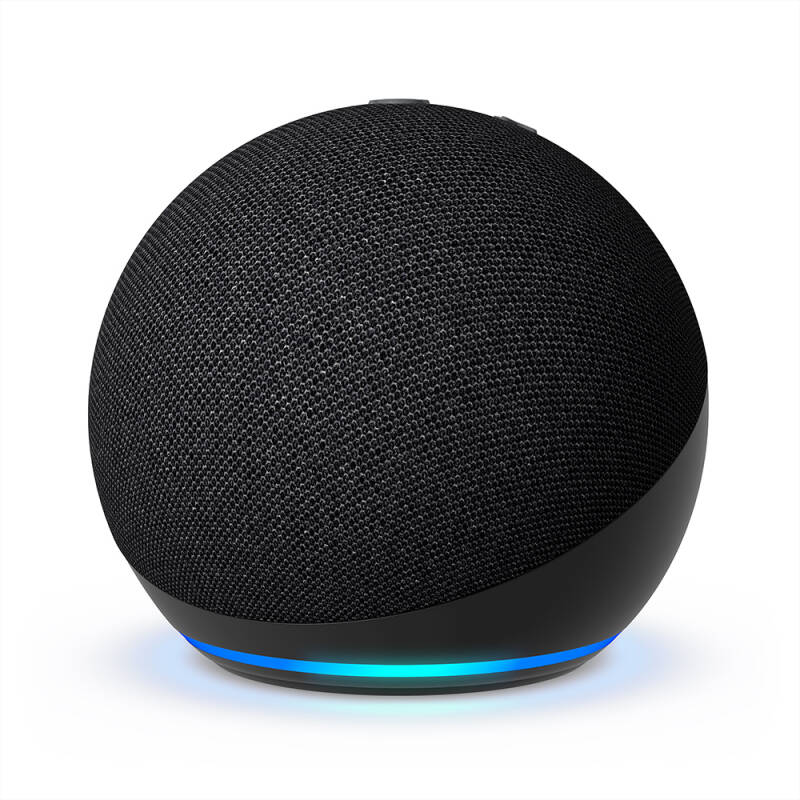
Amazon Echo (5th Gen) — Best for voice control
Perfect for reminders, timers, weather, and simple questions.
Why we recommend it:
-
Very easy voice commands
-
Great for daily reminders
-
Good sound quality
Google Nest Mini — Best for Google users
Ideal if you use Google Photos, Gmail, or Google Calendar.
Why we recommend it:
-
Simple voice control
-
Works with Google services
-
Compact and affordable
⭐ E‑Readers
Perfect for reading without eye strain.
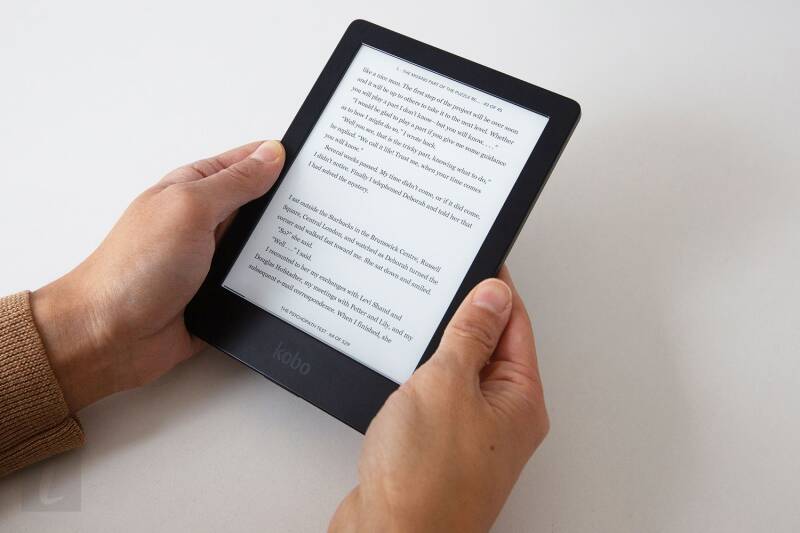
Kindle Paperwhite — Best for reading
Easy on the eyes, lightweight, and perfect for long reading sessions.
Why we recommend it:
-
Adjustable warm light
-
Waterproof
-
Very clear text
3. Recommended Accessories
⭐ Magnifiers
Make your phone or tablet screen larger and easier to read without needing stronger glasses.

12‑Inch Phone Screen Magnifier — Best overall
A foldable, lightweight magnifier that enlarges your phone screen up to 2–3×. Great for reading messages, watching videos, and browsing.
Why we recommend it:
-
Large 12‑inch viewing area
-
Folds flat for storage
-
Works with any smartphone
Acrylic HD Screen Magnifier — Clearest picture quality
Made from high‑quality acrylic for a sharper, brighter image. Ideal for seniors who want the clearest possible view.
Why we recommend it:
-
HD acrylic lens
-
Bright, sharp image
-
Sturdy stand
Wooden Frame Screen Magnifier — Best for home use
A stylish magnifier with a wooden frame that looks great on a desk or table. Perfect for reading, video calls, and TV apps.
Why we recommend it:
-
Attractive wooden design
-
Stable base
-
Great for long viewing sessions
Portable Pocket Magnifier — Best for travel
A small, lightweight magnifier you can carry in a bag or pocket. Ideal for reading text on the go.
Why we recommend it:
-
Very portable
-
Lightweight
-
Great for quick reading
Tablet Screen Magnifier Stand — Best for tablets
Designed for larger screens, this stand magnifies tablets for easier reading, browsing, and watching videos.
Why we recommend it:
-
Works with tablets
-
Adjustable viewing angle
-
Clear, bright lens
⭐ Stylus
Make tapping, writing, and navigating easier on phones and tablets.

MEKO Universal Stylus — Best overall
A reliable, comfortable stylus that works on any phone or tablet. Great for tapping small buttons, writing notes, and drawing.
Why we recommend it:
-
Works on all touchscreens
-
Comfortable grip
-
Includes replacement tips
Adonit Pro 4 — Most precise
A high‑precision stylus with a fine tip, ideal for handwriting, signing documents, and detailed tasks.
Why we recommend it:
-
Very accurate
-
Premium feel
-
Great for writing
Apple Pencil (1st or 2nd Gen) — Best for iPads
If you use an iPad, the Apple Pencil gives the smoothest writing and drawing experience.
Why we recommend it:
-
Extremely accurate
-
Perfect for Apple Notes
-
Great for drawing and handwriting
Samsung S Pen — Best for Samsung tablets
Designed for Samsung Galaxy tablets, the S Pen is responsive, accurate, and great for note‑taking.
Why we recommend it:
-
No charging needed
-
Very responsive
-
Ideal for Samsung tablets
Soft‑Tip Stylus Pack — Best budget option
A pack of soft‑tip styluses that are gentle on screens and perfect for seniors who want something simple and affordable.
Why we recommend it:
-
Very affordable
-
Soft rubber tips
-
Great for tapping and scrolling
⭐ Easy‑Use Keyboards
Keyboards with larger letters, clearer layouts, and easier typing for seniors.

Logickeyboard LargePrint Keyboard — Best overall
A full‑size keyboard with extra‑large, high‑contrast letters. Perfect for seniors who want clearer, easier typing.
Why we recommend it:
-
Very large letters
-
High‑contrast black and yellow keys
-
Comfortable full‑size layout
Perixx Periboard 317 — Best budget option
A simple, affordable keyboard with large‑print keys and a quiet typing feel.
Why we recommend it:
-
Large, easy‑to‑read letters
-
Quiet keys
-
Very affordable
Microsoft Bluetooth Keyboard — Best wireless option
A clean, lightweight wireless keyboard that works with laptops, tablets, and even phones.
Why we recommend it:
-
Wireless and clutter‑free
-
Soft, comfortable keys
-
Works with Windows, Mac, and tablets
Logitech K380 — Best for tablets
A compact, easy‑to‑use keyboard that pairs with tablets and phones. Great for seniors who want to type messages more easily.
Why we recommend it:
-
Lightweight and portable
-
Connects to multiple devices
-
Comfortable rounded keys
Chester Creek BigBlu VisionBoard — Largest keys
Designed specifically for low‑vision users, with huge keys and very clear lettering.
Why we recommend it:
-
Extra‑large keys
-
High‑contrast lettering
-
Very easy to see and press
⭐ Wireless Chargers
Charge your phone by simply placing it on a pad — no fiddly cables or tiny plugs.
Anker Wireless Charging Pad — Best overall
A reliable, easy‑to‑use charging pad that works with most modern smartphones. Just place your phone on top and it starts charging.
Why we recommend it:
-
Very simple to use
-
Non‑slip surface
-
Works with iPhone and Android
Belkin BoostCharge Pad — Most reliable
Belkin chargers are known for quality and safety. This pad charges quickly and has a clear LED indicator.
Why we recommend it:
-
Trusted brand
-
Fast charging
-
Clear charging light
ESR HaloLock Magnetic Charger — Best for iPhones with MagSafe
If you have a newer iPhone, this magnetic charger snaps into place automatically — perfect for seniors who struggle with alignment.
Why we recommend it:
-
Magnetic auto‑alignment
-
Fast charging
-
Very easy to place correctly
Samsung Wireless Charger Pad — Best for Samsung phones
Designed for Samsung Galaxy devices, this charger is fast, reliable, and has a cooling system to prevent overheating.
Why we recommend it:
-
Fast charging for Samsung
-
Built‑in cooling
-
Slim design
3‑in‑1 Wireless Charging Stand — Best for charging multiple devices
Perfect if you want to charge your phone, smartwatch, and earbuds all in one place.
Why we recommend it:
-
Charges 3 devices at once
-
Great for bedside tables
-
Reduces cable clutter
⭐ Headphones
Clear, comfortable headphones that make video calls, music, and TV easier to hear.

Sony WH‑CH520 — Best overall
Lightweight, comfortable, and great sound quality. Perfect for everyday use, video calls, and listening to music.
Why we recommend it:
-
Very comfortable
-
Long battery life (up to 50 hours)
-
Clear sound for calls
JLab Studio Wireless — Best budget option
Affordable, simple, and surprisingly good sound. Ideal for seniors who want something easy and reliable.
Why we recommend it:
-
Very affordable
-
Lightweight
-
Easy Bluetooth connection
AfterShokz OpenMove — Best for safety (open‑ear)
These sit in front of your ears, not inside them — great for seniors who want to stay aware of their surroundings.
Why we recommend it:
-
Open‑ear design
-
Very comfortable
-
Great for walking and daily use
Apple AirPods (2nd Gen) — Best for iPhone users
Easy to pair, easy to use, and great for calls. Perfect if you’re already in the Apple ecosystem.
Why we recommend it:
-
Instant pairing
-
Clear voice quality
-
Very lightweight
Samsung Galaxy Buds FE — Best for Samsung users
Comfortable earbuds with excellent sound and simple controls. Ideal for Samsung Galaxy phones and tablets.
Why we recommend it:
-
Great sound
-
Easy touch controls
-
Works perfectly with Samsung devices
Avantree HT5009 TV Headphones — Best for TV watching
Designed specifically for TV use — no delay, no syncing issues, and very clear dialogue.
Why we recommend it:
-
No audio delay
-
Very clear speech
-
Works with most TVs
4. Recommended Services
⭐ Learning Platforms
Simple, friendly websites where seniors can learn new skills at their own pace.
Skillshare — Best for creative learning
Skillshare offers short, easy‑to‑follow video lessons on drawing, photography, writing, crafts, and more. Perfect for seniors who enjoy creative hobbies.
Why we recommend it:
-
Short, simple lessons
-
Great for hobbies and creativity
-
Learn at your own pace
Udemy — Best for practical skills
Udemy has thousands of courses on everyday skills like using smartphones, computers, email, and photography.
Why we recommend it:
-
Huge range of topics
-
One‑time purchase (no subscription)
-
Beginner‑friendly courses
Khan Academy — Best free option
A completely free learning platform with clear, simple lessons on maths, science, history, and more.
Why we recommend it:
-
100% free
-
Very clear explanations
-
Great for brushing up on knowledge
BBC Bitesize — Best for simple explanations
BBC Bitesize breaks topics down into small, easy‑to‑understand chunks. Great for seniors who want gentle, simple learning.
Why we recommend it:
-
Short, simple lessons
-
Trusted UK source
-
Great for learning at your own pace
Coursera — Best for deeper learning
Coursera offers courses from universities around the world. Ideal for seniors who want more in‑depth learning.
Why we recommend it:
-
University‑level courses
-
Many free options
-
Learn anything from psychology to computing
FutureLearn — Best UK‑based platform
A UK‑run learning platform with friendly, easy‑to-follow courses on wellbeing, history, digital skills, and more.
Why we recommend it:
-
UK‑based
-
Very beginner‑friendly
-
Lots of short courses
⭐ Scam‑Prevention Tools
Simple tools that help protect you from fake emails, dangerous websites, and online scams.
Have I Been Pwned — Check if your email has been leaked
A trusted website where you can safely check if your email address has appeared in a data breach.
Why we recommend it:
-
Completely free
-
Very simple to use
-
Trusted worldwide
Trend Micro ID Security — Monitors your personal details
Alerts you if your email, passwords, or personal information appear on the dark web.
Why we recommend it:
-
Easy alerts
-
Monitors multiple details
-
Great for peace of mind
Bitdefender Scamio — Check if a message is a scam
A free tool where you can paste a suspicious email, text, or link, and it tells you if it looks dangerous.
Why we recommend it:
-
Completely free
-
Very accurate
-
Works with emails, texts, and links
Google Safe Browsing Check — Check if a website is safe
Paste any website link and Google will tell you instantly if it’s dangerous.
Why we recommend it:
-
Free and fast
-
Very reliable
-
Great for checking links before clicking
Norton LifeLock — Full identity protection
A premium service that monitors your identity, bank details, and personal information for signs of fraud.
Why we recommend it:
-
Strong identity monitoring
-
Alerts for unusual activity
-
Great for seniors who want extra protection
BT Call Protect — Block scam phone calls (UK)
Automatically blocks nuisance and scam calls before they reach your phone.
Why we recommend it:
-
Free for BT customers
-
Blocks known scam numbers
-
Reduces unwanted calls
⭐ Backup Services
Keep your photos, documents, and important files safely stored so you never lose precious memories.
Google One — Best for Android users
Google One automatically backs up your photos, contacts, messages, and files. Perfect if you use a Samsung or Android phone.
Why we recommend it:
-
Automatic phone backups
-
Stores photos and files
-
Very easy to use
iCloud+ — Best for iPhone and iPad users
iCloud keeps your photos, notes, contacts, and device settings safely backed up across all Apple devices.
Why we recommend it:
-
Built into every iPhone and iPad
-
Automatic backups
-
Great for photos and documents
Microsoft OneDrive — Best for Windows users
OneDrive backs up your computer files, photos, and documents automatically. Ideal if you use a Windows laptop or PC.
Why we recommend it:
-
Works perfectly with Windows
-
Automatic file backup
-
Easy to organise and restore
Dropbox Backup — Easiest to set up
Dropbox Backup is simple and reliable. It backs up your entire computer or selected folders with one click.
Why we recommend it:
-
Very simple setup
-
Automatic backups
-
Great for beginners
Backblaze — Best full‑computer backup
Backblaze quietly backs up your entire computer in the background — every file, every photo, every document.
Why we recommend it:
-
Unlimited backup
-
Very easy to use
-
Great for peace of mind
IDrive — Best for multiple devices
IDrive lets you back up several devices under one account — perfect for couples or families.
Why we recommend it:
-
Backs up multiple devices
-
Good value
-
Works on phones and computers