⭐ How to Use E‑Readers
A simple, step‑by‑step guide for beginners
⭐ What is an E‑Reader?
An e‑reader is a small, lightweight device designed specifically for reading books.
It lets you:
-
Read books comfortably
-
Adjust text size
-
Store thousands of books
-
Read in bright sunlight
-
Read at night with a soft backlight
-
Carry a whole library in your bag
Think of it as a digital book that never gets heavy.
⭐ Why e‑readers are helpful for seniors
E‑readers are extremely senior‑friendly because:
-
You can make the text as large as you like
-
They’re light and easy to hold
-
The screen is gentle on the eyes
-
You can read for hours without strain
-
You don’t need to carry heavy books
-
You can buy books instantly
They’re perfect for anyone who loves reading.
⭐ Step 1 — Choose your e‑reader
The most popular options are:
-
Amazon Kindle — easiest to use, huge book selection
-
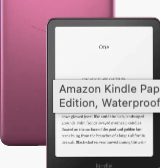
Kindle Paperwhite — waterproof, great screen
-
Kobo Clara — excellent for library borrowing
-
Kobo Libra — larger screen, easy buttons
All of them work in a similar way.
⭐ Step 2 — Turn on your e‑reader
-
Press the power button
-
Wait for it to load
-
Connect to Wi‑Fi if asked
You’ll then see your Home Screen with your books.
⭐ Step 3 — Adjust the text size
This is one of the best features.
-
Open a book
-
Tap the top of the screen
-
Choose Aa or Text Settings
-
Increase the text size
-
Adjust brightness if needed
Make it as large and comfortable as you like.
⭐ Step 4 — Turn pages
Turning pages is simple:
-
Tap the right side → next page
-
Tap the left side → previous page
-
Swipe left or right → move through pages
There are no buttons to press (unless you have a model with page buttons).
⭐ Step 5 — Buy or download books
To get new books:
-
Tap Store or Shop
-
Search for a title or author
-
Tap the book
-
Tap Buy or Download
Books appear instantly on your Home Screen.
You can also download free samples to try before buying.
⭐ Step 6 — Borrow books from the library (Kobo only)
If you have a Kobo:
-
Install the Libby app on your phone or tablet
-
Sign in with your library card
-
Borrow a book
-
Send it to your Kobo
It appears on your e‑reader automatically.
⭐ Step 7 — Use the built‑in dictionary
If you see a word you don’t know:
-
Press and hold the word
-
A definition will appear
This is brilliant for learning new words.
⭐ Step 8 — Highlight and save notes
You can save your favourite lines:
-
Press and hold a word
-
Drag to highlight a sentence
-
Tap Highlight
Perfect for quotes, recipes, or important information.
⭐ Step 9 — Change the reading theme
Most e‑readers let you choose:
-
Light mode
-
Dark mode
-
Sepia (soft brown)
Choose whichever is easiest on your eyes.
⭐ Step 10 — Charge your e‑reader
E‑readers have excellent battery life — often weeks.
To charge:
-
Plug in the USB cable
-
Connect it to a plug or computer
-
Wait for the battery icon to fill
You rarely need to charge it.
⭐ Quick Tips
-
Increase text size for comfort
-
Use dark mode at night
-
Download samples before buying
-
Keep Wi‑Fi off to save battery
-
Use a case to protect the screen
⭐ You’re now ready to enjoy your e‑reader
E‑readers make reading easier, lighter, and more enjoyable. With adjustable text, long battery life, and instant books, they’re perfect for everyday reading.